
Favus: how the process runs
Favus is process mining software that turns event logs from your business systems into process maps, so you see how end-to-end processes really run.

Opus (task mining), part of Optimus Hive
Opus is task mining software that records applications, websites and time on Windows desktops, so you know what each task involves. Opus maps task processes and their costs, so you can decide which work to standardize, automate or hand to AI agents.
How Opus turns desktop work into task data under your privacy rules, and an approved run into an n8n workflow draft.
Figures in the animation are illustrative.
Optimus Hive was named a Major Contender and a Star Performer in Everest Group's Digital Interaction Intelligence Products PEAK Matrix® Assessment 2026.
Task mining is the analysis of desktop activity to show how people actually carry out individual tasks. Task mining software records which applications and websites are used, in what order and for how long, then rebuilds each task's steps and variations.
Opus does this with a Windows desktop agent and with task recordings that employees start themselves.
Before you hand tasks to AI agents, you need to know how those tasks are done today. An AI agent is software that uses AI to complete multi-step tasks with limited supervision. Written procedures and workshops describe how work should run. Opus shows the steps people really take at the desktop, how often each variation occurs and what each one costs.
Opus maps each task from recorded cases, in four steps. An administrator sets up the agent and privacy policy, employees record tasks, analysts review each case, and a task process map shows the result.
An administrator installs the Opus desktop agent on Windows PCs with an MSI installer and enrolls each PC once. Opus collects no work activity until the administrator publishes the device privacy policy.
An employee starts a task recording from the Opus tray icon or portal, and can pause, resume or stop it and log exceptions. Opus tags the activity with the task and, where entered, its case or reference ID.
Analysts step through each recorded case (one run of the task, such as processing one invoice) and add comments. They mark the best run as the approved way of working.
Opus combines the recorded cases into a task process map with frequency and duration. The map shows the variants (the different paths the task takes), loops, root causes, lead times and average case cost.
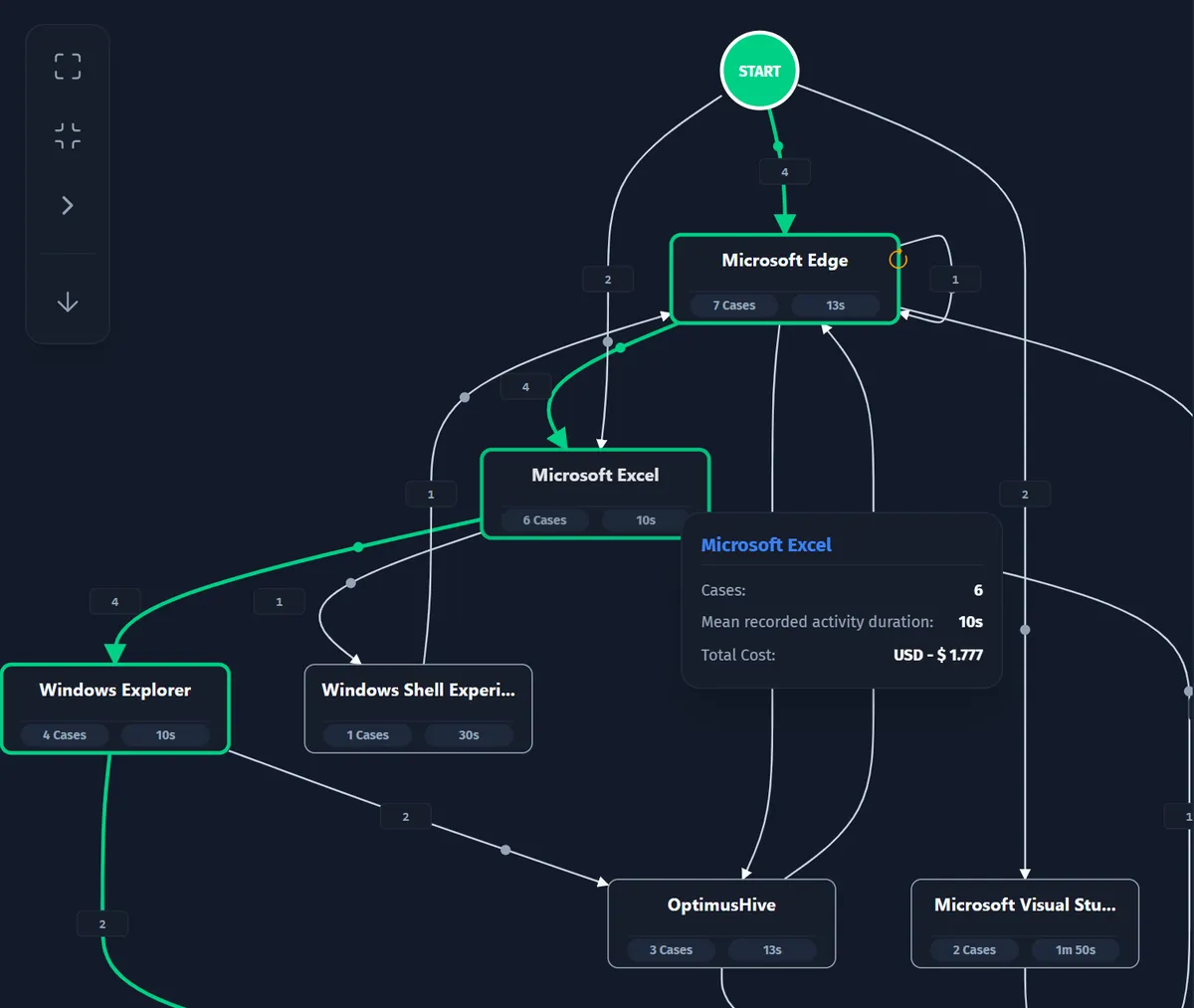
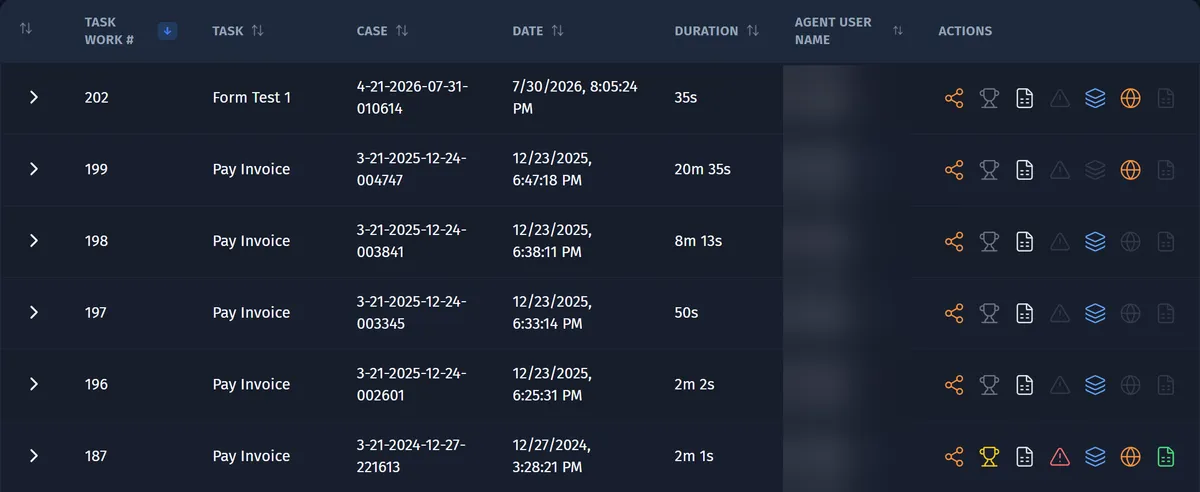
Opus costs every recorded task case as its duration multiplied by the department's hourly or daily rate, in the department's currency. The task process map shows the average cost per case for the variants you select.
Compare the cost of each way of doing a task, and find the variants and loops that add the most cost.
Each department has its own hourly or daily rate, set in its department settings. A daily rate covers an eight-hour day.
The Task Maps dashboard shows the exceptions employees logged and the cases they affected. Analysts can turn an exception into an owned investigation with actions and a history.
Save any KPI with its source records and definition, then reopen it later with the same numbers.
Opus helps you find candidate work for automation, from recorded activity rather than workshops. Opus finds and ranks the candidates, and your team decides what to automate or hand to AI agents.
The Auto Discovery view classifies recorded activities by automation method, with tasks by variant and duration by date. The view does not estimate savings.
Opus looks for the same steps repeated across people and days, over a window of up to 90 days and up to 100 applications. Reviewers see every occurrence and accept or reject each pattern.
Opus ranks automation candidates by measured volume, stability and exceptions, against the cost assumptions you enter. You can then simulate the effect on staffing capacity.
Export an approved task run to n8n. Opus uses AI to draft an n8n workflow from the run's recorded steps, and refines the draft from your instructions in plain words. The draft stays inactive, is marked for review and contains no credentials. Your team downloads it as a JSON file, imports it into n8n, adds the credentials, tests it and switches it on. The draft can include AI steps if your team wants them. Drafting needs AI set up for your organization's workspace, and it is not part of the free trial.
Agent Studio in Opus turns a recorded task into a draft AI-agent design for your team to review. Every AI-drafted output is marked as a draft that a person must check before use.
How Agent Studio turns a recorded task into a draft AI-agent design for your team to review.
Figures in the animation are illustrative.
Agent Studio starts from the evidence Opus has recorded for a task over a period you choose. An automation opportunity your reviewers accept can also go to Agent Studio as its starting point.
What happens next is your team's decision: review the drafts, test them and decide what to build.
Agent Studio works out the task's cases, variants, main path, bottlenecks and metrics from saved evidence.
Draft: review required
A draft configuration for the agent, with the points in the task to automate and the rules for checking its work.
Draft: review required
Draft definitions of the tools the agent would use.
Draft: review required
Draft guardrails for the agent, including a list of personal data to mask.
Draft: review required
A draft test scenario, with sample input to check the agent against.
Draft: review required
A draft business case for automating the task. It is separate from the program business case your team builds in Via.
Draft: review required
Draft code for a Python or Node service, or an n8n workflow draft.
What Agent Studio needs Agent Studio's drafting steps use an AI provider that must be set up for your organization's workspace. Agent Studio's AI drafts are not part of the free trial.
Opus turns the approved way of doing a task into on-screen guidance for the people who still do it. The approved run becomes a Task Library entry and a Desktop Copilot checklist in the matching application.
Analysts mark the best recorded run of a task as the approved way of working. Employees then find it in the Task Library in their Opus portal.
Desktop Copilot shows the approved steps, tips and links to procedures as a checklist whenever the employee works in the matching application.
Desktop Copilot guides employees through the approved steps. It does not do the task for them.
Desktop Copilot is on unless a department switches it off, and it respects the applications excluded in your privacy policy.
Whenever collection is on, Opus records which application is in use on each Windows PC and for how long. Window titles, websites and other data types depend on department switches, the privacy policy or other settings your administrators control.
What the Opus desktop agent does on an employee's Windows PC, from the privacy policy to the upload.
Figures in the animation are illustrative.
Where the department's switches allow, Opus also records window titles and websites, counts keyboard and mouse actions per activity and marks idle periods. Opus can pick out the search terms people use on search sites your administrators list. When someone returns from idle time, Opus can ask for a reason from a list your administrators set. When employees record a task, Opus tags that activity with the task and, where entered, its case ID. The Excel add-in, installed with every agent, records sheet selections and cell changes, with the values entered, under the same privacy policy.
Other data types are optional. Where a department turns them on, Opus can record typed text, clipboard contents, and Outlook email, including message bodies, and calendar items. Screenshots and task screen recordings stay blocked until an administrator allows them in the privacy policy. Where an administrator turns it on, Opus notes when people use the AI tools you list. Where a location provider is set up, Opus maps active agents by approximate, IP-based location. Administrators can turn location off.
Until an administrator publishes the device privacy policy, Opus collects no work activity. Only the agent-health heartbeat runs without it: every five minutes, enrolled PCs report their agent's version, unsent backlog and free disk space.
| Data type | When Opus records it | How it is controlled |
|---|---|---|
| Activity and task data | ||
| Applications and time | Whenever collection is on. Opus records the application in use and when each activity starts and ends. | The privacy policy's collection switch and excluded applications. Departments can limit capture to working hours and let employees pause it. |
| Window titles | When the department's switch for window titles is on. | Excluded applications are dropped. Text that matches a redaction pattern is masked before upload. |
| Websites | When the department's switch for web addresses is on, in Chrome, Edge, Firefox and Brave. | Excluded websites, including their subdomains, are dropped. Matching text is masked before upload. |
| Search terms | On search sites your administrators list, when the department's switch for web addresses is on. | Your administrators choose the search sites. The department's switch for web addresses applies. |
| Keyboard and mouse counts, and idle time | Counts of key presses and mouse actions per activity, not what is typed. Idle periods begin after an inactivity threshold the department sets. | Department settings for mouse clicks, idle tracking and the inactivity threshold. |
| Idle reasons | When an employee returns from idle and picks a reason. Employees can also enter it later in their portal. | Your administrators define the list of reasons, and the employee chooses one. |
| Task recordings and case IDs | When an employee starts a task recording. Opus tags the activity with the task and, where entered, its case or reference ID. | Employees start, pause and stop each recording. |
| Excel cell changes | Sheet selections and cell changes, with the values entered, recorded by the Excel add-in installed with every agent. There is no separate switch. | Follows your privacy policy: without a valid policy, nothing is stored or uploaded. The department's stop-sending-logs setting, employee pause and turning off data collection for an employee also stop it. |
| Other data types (when enabled) | ||
| Typed text | When the department's switch for keyboard capture is on. | Text redaction on the PC and on the server. Visible only to administrators and department administrators. |
| Clipboard contents | When the department's switch for clipboard capture is on. | Text redaction on the PC and on the server. Visible to administrators, department administrators and the employee concerned. |
| Screenshots | Blocked until an administrator allows them in the privacy policy. Then taken on triggers the department sets, such as a time interval or a change of activity. | Not taken while text-redaction rules are active. The server can mask text in images with optical character recognition (OCR) before anyone views them. |
| Task screen recordings | Blocked until an administrator allows them in the privacy policy. Then captured only during task recordings that require them. | Not taken while text-redaction rules are active. Frames are processed and masked on the server before the recording can be replayed. |
| Outlook email and calendar items | When the department's switch for Outlook capture is on. Capture includes message bodies and can be limited to messages that contain keywords you set. | Matching text is masked before upload. Visible only to administrators and department administrators. |
| AI-tool usage | Off until an administrator turns it on. Opus then notes when people use the AI tools you list. | An administrator setting, and the list of AI tools you set. |
| Approximate location | Where a location provider is set up, Opus maps active agents by approximate, IP-based location. | Administrators can turn location off and set how precise it is. |
| Device health | ||
| Agent health | Always on for enrolled devices: every five minutes, the agent reports its version, its backlog of unsent records and free disk space. | Samples of the agent's own CPU and memory use are kept only while your privacy policy allows collection. Employees see the CPU and memory samples, listed as agent health, on their My Data and Privacy page. |
Opus collects no work activity until an administrator publishes a device privacy policy. Each organization controls what is captured and who sees it.
Records wait on each PC in an encrypted local store and travel to the platform only over HTTPS. IT can preview exactly what a PC would upload after privacy filtering.
In the Opus web app, the screens for raw data such as typed text, clipboard contents, email and screenshots are limited to administrators and department administrators. Department administrators see only their own department. Employees can view their own clipboard entries and screenshots in their portal.
See every control in one place on the task mining privacy and governance page.
Opus collects no work activity until an administrator publishes a device privacy policy. The desktop agent refreshes the policy every five minutes, and collection pauses if its copy lapses after six hours.
Nothing from excluded applications and websites leaves the PC. Redaction masks text that matches up to 100 patterns you set, before anything leaves the PC. Server policies can redact typed and copied text again as it arrives.
Screenshots and recordings stay blocked until an administrator allows them, and are not taken while text-redaction rules are active. Where images are allowed, the server can mask text in them with optical character recognition (OCR) before anyone views them.
Capture can be limited to working hours, minus a lunch break. Departments can let employees pause collection for 15 or 60 minutes, or until they resume it.
Protected cohort reports show groups, not named people: small groups are hidden and people appear under pseudonyms (stand-in names). Revealing a person takes a tenant administrator and a recorded reason. A company-wide setting can block identifiable reports.
Employees see which data categories are collected, the policy in effect and who accessed their data, and can request corrections. Every authorized access to a named employee's data is recorded.
Task mining and employee monitoring can use similar desktop data, but Opus task mining uses it to measure how work is done. The aim is to improve the work, standardize it or move it to AI agents.
Opus can capture detailed desktop activity, so the controls matter. Each organization decides what Opus captures, when, and who sees it, through the device privacy policy, department settings and working-hours capture.
Protected cohort reports show groups under pseudonyms, and a company-wide setting can block identifiable reports. Employees can see in their own portal which data categories are collected and who accessed their data.
Opus is the first step of the Optimus Hive method: see how the work is done at the desktop. Favus then shows how the end-to-end process runs, and Via turns your team's decisions into a costed plan for moving tasks to AI agents.
Opus and Favus connect at the level of each case. Once an administrator sets the case-matching rule and employees enter the case ID, the unified case timeline places desktop work beside each case's system events.
Favus is process mining software that turns event logs from your business systems into process maps, so you see how end-to-end processes really run.
Later in the method, your team brings the findings into Via. Via is transformation planning software that plans, prices and tracks the move of work to AI agents, so you decide with a costed business case.
Short answers to buyers' questions about Opus task mining software: platforms, offline PCs, IT rollout, employee data, cost and AI agents.
No: Opus records desktop work on Windows PCs only, and there is no Opus agent for macOS or Linux. Analysts, managers and employees open the Opus web portal in a web browser.
Yes: the Opus desktop agent keeps recording offline, holding records in an encrypted local store until it can upload them over HTTPS. Records are deleted from the PC only after the platform confirms receipt. Each privacy-policy copy is valid for six hours, so a PC offline for longer pauses collection until it can refresh the policy.
No: Opus records work at the desktop through its Windows agent, so it needs no connection to your business systems. IT installs the agent with an MSI installer, enrolls each PC once with a one-time token and publishes the device privacy policy. Agent updates are signed and can go to pilot groups first, with rollback. The Opus web app supports OpenID Connect single sign-on and SCIM user provisioning.
Yes: in their own portal, employees see which data categories are collected about them, the collection policy that applies, and who has accessed their data. They can also request corrections, which administrators work through in a review queue.
Opus multiplies the recorded time of each activity and task case by the department's hourly or daily rate, in the department's currency. A daily rate is spread over an eight-hour day. The task dashboards then show the average cost per case, so you can see which variants and loops cost the most.
Opus drafts AI-agent designs rather than building finished agents. Agent Studio in Opus turns a recorded task into a draft configuration, tools, guardrails, test scenario, business case and code. Every AI-drafted output is marked as a draft for your team to review. Agent Studio needs an AI provider set up for your workspace, and its AI drafts are not part of the free trial.
The free trial is a 60-day trial of Opus task mining for up to 4 PCs and 2 users. No payment details are requested.
How sign-up works You register with your company name, your name, a business email address and a phone number. After you confirm your email address, we create your own Optimus Hive workspace, and a second email lets you set your password. Our team then sets up your first devices with you.
Request a demo to see how Opus records, maps and costs desktop tasks, and where Opus fits in your move to AI agents.